DJI drones include built in tools to help operators comply with local airspace regulations. This guide explains how to check where you can fly, and how to unlock restricted zones using DJI's Fly Safe system.
🗺️ Checking Airspace Restrictions
You can view restricted and authorized GEO Zones directly from your DJI controller or through DJI’s Fly Safe website.
How to Check from the Controller:
1. Tap the "Max Altitude" Button
-
Located in the top-left corner of the controller’s screen.
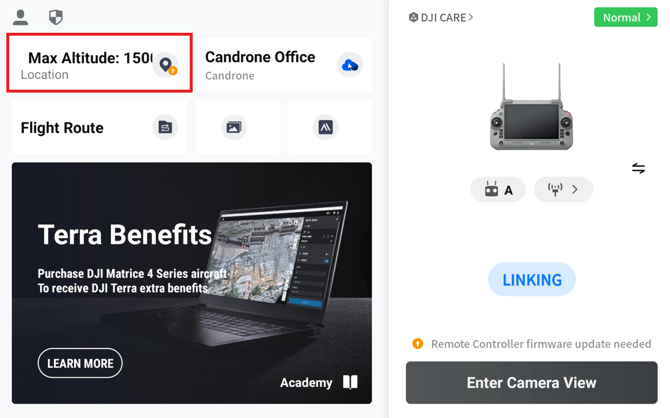
- Tapping this will bring up a map view.
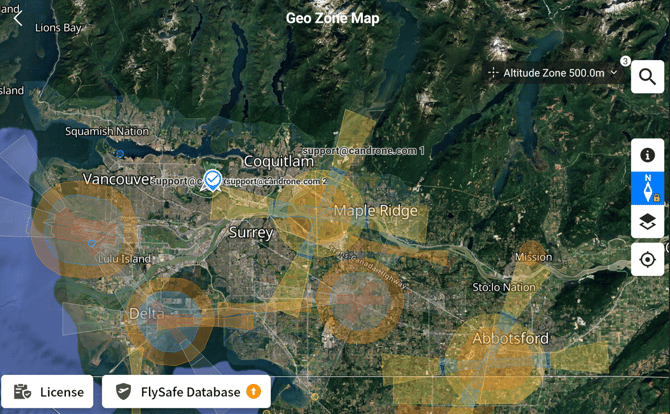
To view this map on the web, visit this link.
2. Zoom Out to View the Map
The map will display color-coded zones:
-
-
Restricted Zones (Red): You won't be able to fly here without authorization
- Authorization Zones (Blue): You won't be able to fly here without authorization
- Warning Zones (Yellow): Users will be prompted with a warning message. Flight is allowed, but fly with caution
- Enhanced Warning Zones (Orange): Users will be prompted to fill out an on screen form. Flight is allowed after completion, but fly with caution
- Alititude Zones (Grey): Flight is allowed up to noted altitude. Flying above noted altitude requires authorization
-
🛑 In places like Vancouver, where airspace is complex and populated, many overlapping zones may appear.
Keep in mind that these zones are updated by DJI and may not always reflect the real time airspace restrictions. Always be sure to check local regulations and maps before flying.
🔓 How to unlock a GEO Zone
If you need to fly within a restricted zone for a legitimate, approved purpose, you can request zone unlocking through DJI.
📝 What You'll Need:
-
DJI Account
-
Drone model and serial number
-
Flight location and time
-
Proof of approval from local aviation authority (if applicable)
🧭 How to Apply:
1. Visit the Unlock Request Form
2. Log in to your DJI Account
3. Click on New Unlock Request, and enter your device serial number
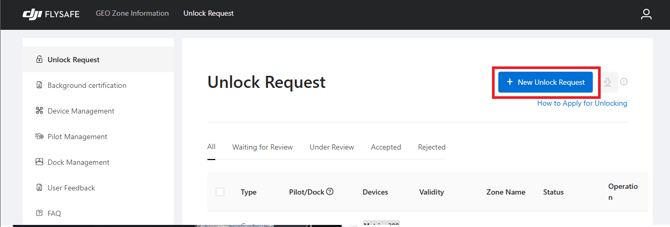
4. Select your Unlocking Type
- Custom Unlocking: Use to unlock a custom flight area (including GEO Zones). Draw a Polygon, Circle, or import coordinates to outline your flight area on the map.
- Zone Unlocking: Use to unlock a GEO Zone outlined on the map.
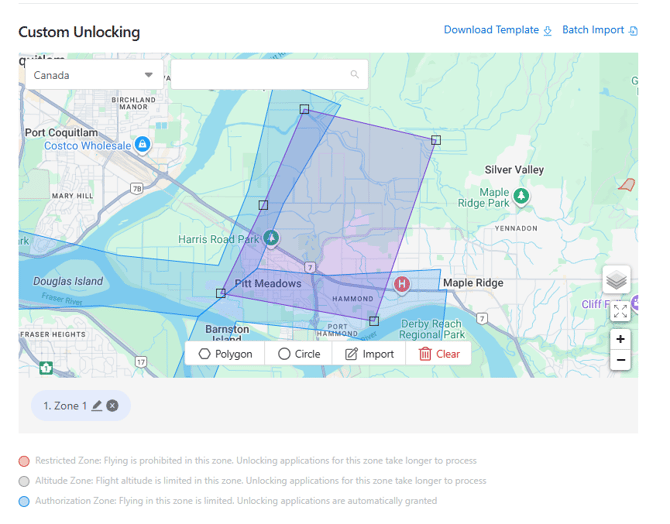
5. Enter the time range which you will be flying your drone as well as the flight altitude.
6. Enter the reason which you need the GEO Zone unlocked
7. Upload your approval from local aviation authority and click Submit
🪧 DJI generally reviews applications around 30 minutes after submission
☁️ Receiving and Accessing Unlock Approval
Once approved, your DJI Fly Safe Unlock Certificate will be automatically synced to your DJI account. Your controller will need an internet connection to sync the certificate.
To Access Your Unlock Certificate:
1. On your controller ensure you are logged into the same DJI account you were on when you submit the application. Then open the GEO Zone map again and click on License in the bottom left of the screen
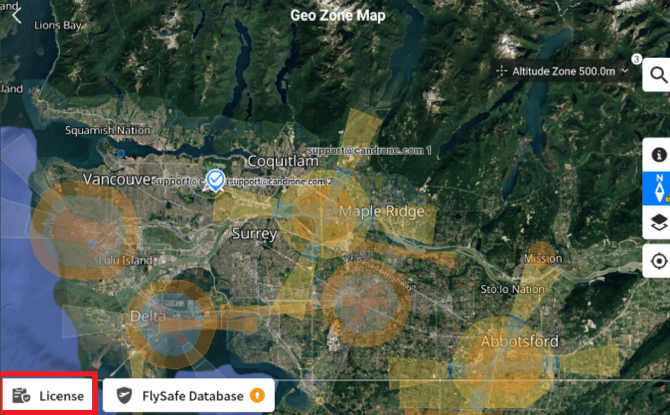
2. You’ll see the active and scheduled unlocking certificates listed.
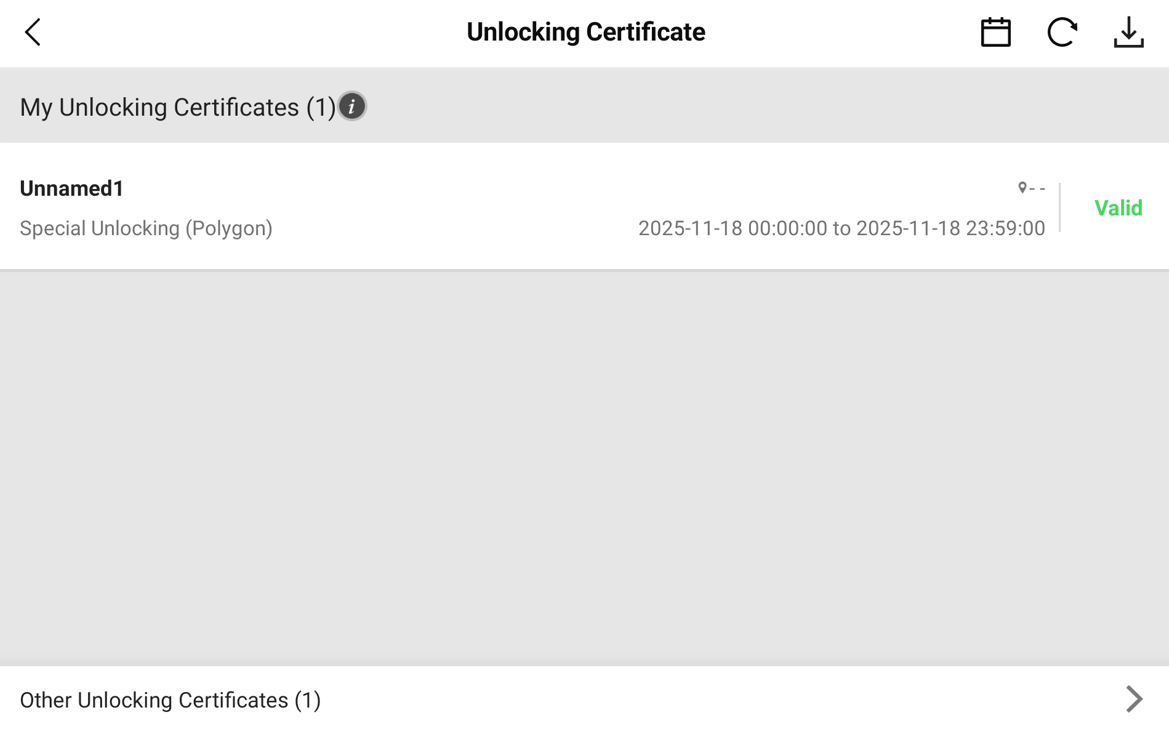
If your drone isn't connected, you may need to click on "Other Unlocking Certificates" at the bottom of the screen.
Once active, your drone will be allowed to operate in the previously restricted area for the duration and location specified in the certificate.
✅ Summary
| Task | How to Do It |
|---|---|
| Check No-Fly Zones | Tap Max Altitude > View Map on Controller |
| Apply for Unlocking | Visit DJI Fly Safe Portal |
| Access Approved Unlocks | Go to Licensing section on the controller |
Following these steps ensures you remain compliant with DJI's geo-fencing system and local aviation laws.